Hiding WordPress, moving the login page, giving the theme's files different addresses: these settings often worry SEO managers, who fear a drop in traffic. Most have no effect on search rankings, a few call for precautions, and only one can cost you traffic if you turn it on too quickly. This article sorts them out, setting by setting, and offers a rollout procedure that protects your rankings.
What does not change
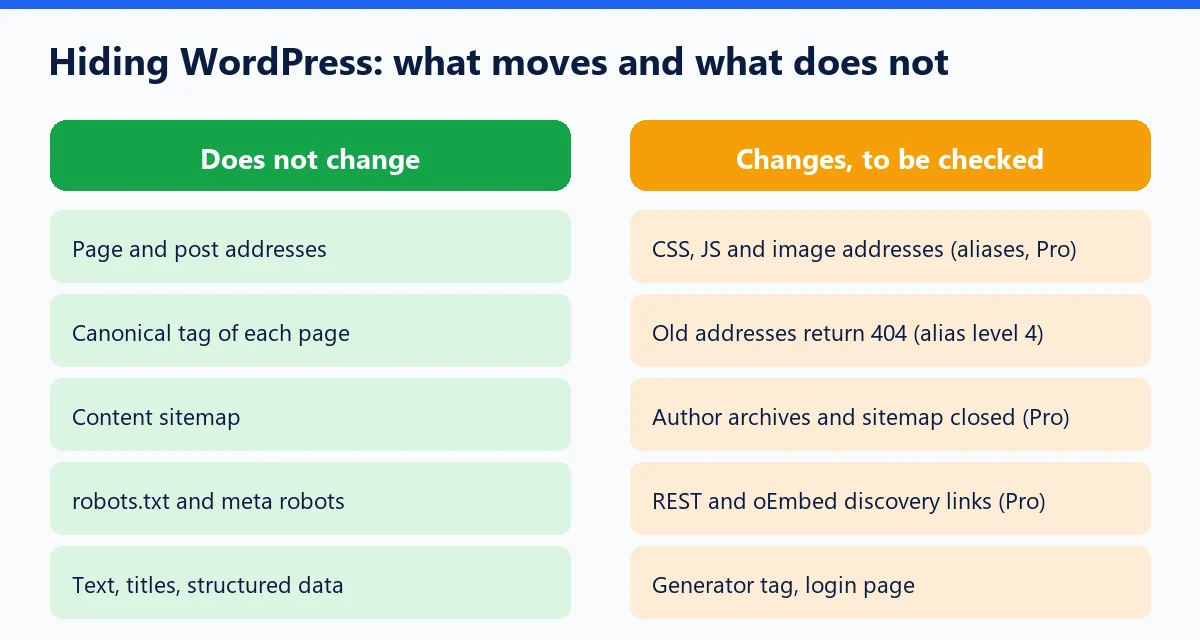
Hiding acts on WordPress's technical signatures, not on your content. With WP Masquerade, our WordPress security plugin, the addresses of your pages and posts (your permalinks) stay the same, as does the canonical tag produced by WordPress or your SEO plugin, your titles, your meta descriptions, your structured data and the sitemap of your content. The physical folders are not moved: the plugin modifies neither core files nor the server configuration.
For Google, a hidden page is therefore still the same page, at the same address, with the same content. What changes are details of the source code that appear in no list of ranking signals published by Google: the generator tag, the RSD and Windows Live Writer links, the shortlink. To understand what these signatures reveal to attackers, see our article on WordPress fingerprinting.
Setting by setting: the effect on SEO
| Setting | Effect on search rankings | Precaution |
|---|---|---|
| Generator tag removed or imitated | No documented effect | Do not advertise an old version in the hope of discouraging attackers |
| RSD, WLW and shortlink links removed | No documented effect | None |
| New login address | None: the login page is not meant to be indexed | Exclude the new address from the cache |
| XML-RPC blocked | None on rankings | Check the apps and services that publish via XML-RPC |
| REST and oEmbed discovery removed Pro | None on rankings | Other sites will no longer be able to embed your posts automatically |
| Author archives and author sitemap closed Pro | Author pages drop out of the index | Keep these pages if they carry useful content |
| File aliases, levels 1 to 3 Pro | New addresses for CSS, JS and media, old ones still served | Check rendering, purge caches |
| Aliases, level 4 Pro | Old static addresses return 404 | Measure Google Images traffic first |
File addresses: rendering, images, cache
The file aliases in WP Masquerade Pro replace /wp-content/, /wp-includes/, media, plugins and themes in the HTML with neutral paths (by default assets, media, system, modules, skins). Server rules point these aliases to the real folders. Three points matter for SEO.
Page rendering
Google renders your pages like a browser in order to understand them. Its robots.txt documentation warns that blocking the scripts, styles or images used to understand a page harms that analysis. If an alias rule fails, CSS and JS return 404 and Google sees a broken page. That is why the plugin checks probe files (HTTP status and SHA-256 fingerprint) before activating an alias plan, and rejects a redirect or a substitute HTML page. Also check that your robots.txt does not block the new paths, then test a page live with Search Console's URL inspection: the rendered screenshot must be complete.
Indexed images
This is the only point where hiding can cost traffic. Google advises always referencing an image with the same address, so that it can cache and reuse it. Its site move guide also reminds you to include images, videos, JavaScript and CSS in any address change plan. With an alias on media, your pages cite a new image address, which Google has to discover and index again.

At levels 2 and 3, the old address is still served: the already indexed image keeps working while Google discovers the new one. At level 4, the old static paths return 404, and Google removes addresses that return a 4xx code from its index. If Google Images brings you visits, first look at the Search Console Performance report filtered on the "Image" search type, and keep level 4 for sites where that traffic is negligible. As the WP Masquerade guide recommends, this level is meant for sites whose hard-coded addresses and cache optimizations have been audited.
The cache
HTML already in the cache can keep the old paths, and a CDN can respond before WordPress even runs. Purge every cache layer after each change (the plugin can purge LiteSpeed Cache, WP Super Cache and WP Rocket, but not host or CDN caches), then check in a private window. For CSS and JS files combined by an optimization plugin, turn optimizations back on one at a time: the generated files may carry new paths.
Is hiding a form of cloaking?
It is a fair question, since Google penalizes cloaking, that is, presenting different content to users and to search engines. The answer lies in the mechanism: WP Masquerade changes the same signatures for all anonymous visitors, crawlers included, without distinguishing by user agent. Googlebot receives exactly the HTML that a logged-out visitor receives, and that HTML contains the same editorial content. There are therefore not two versions of the page.
The rule to remember applies to any customization: never add a rule of your own that would serve different content depending on whether the visitor is Googlebot. That is precisely the technique hackers use, described in our article on SEO spam.
Sitemaps and author pages
Since WordPress 5.5, core generates a sitemap at /wp-sitemap.xml, which by default includes author archives through a dedicated users provider, and announces it in the virtual robots.txt. Hardening level 3 (Pro) blocks author archives, public requests to /wp/v2/users and the author sitemap, which closes a classic route for account enumeration.
- On a business site with one or two authors, author archives often duplicate the blog: removing them from the index has no consequence.
- On a publication whose author pages present real biographies and attract searches, weigh the security gain against losing those pages.
- If you use an SEO plugin that generates its own author sitemap, check it separately and remove the authors from it if the archives are closed, so you do not submit URLs that return 404.
A rollout procedure with no risk to SEO
- Measure the starting point: indexed pages, Web and Images traffic in Search Console, list of URLs from a crawler.
- Start on a staging site, with identity and discovery (no risk to SEO).
- Move the login page after excluding the new address from caches, and test it from a private window (see our guide to the wp-login address).
- Turn on aliases group by group, after installing the server rules and validating the probe files.
- Check the home page, a post, search, 404, RSS feed, sitemap and mobile display, then run URL inspection on a few key pages.
- Monitor for several weeks the Search Console Pages report (rise in "Not found (404)") and the Images curve.
- Only move to level 4 once these curves are stable, and only if images do not weigh in your traffic.
If something goes wrong, the CMS_MASQUERADE_DISABLE constant in wp-config.php suspends the PHP transformations, but the server rules and pages already in the cache remain active: you have to restore and purge them separately.
Aliases and 301 redirects: two different approaches
For a real address migration, Google recommends permanent redirects (301 or 308) from each old URL to the new one, generally kept for at least a year. Aliases do not follow that approach: they add a second address to static files without moving any page, and level 4 returns a 404 on the old address, with no redirect, so that the WordPress path stops responding. Your pages, for their part, keep their addresses and need no redirect. The video below covers the principles of redirects during a redesign, useful if you are also changing your permalink structure.
What hiding brings, with no promises
Hiding does not win you rankings and is not meant to. Its value for a site that lives off search is indirect: less automated targeting, so a lower risk of being hacked, so a lower risk of SEO spam or a Safe Browsing warning, which do cost traffic. Its limits are detailed in our article on what hiding does and does not do. To go further: CMS imitation, file URLs, login page and host and cache compatibility.
To check your whole SEO setup, follow our six-step WordPress SEO audit method.
Key takeaways
- Permalinks, canonical, content and the content sitemap do not change.
- File aliases require checking rendering and purging every cache.
- Level 4 makes old image addresses return 404: measure your Images traffic first.
- Hiding is not cloaking as long as crawlers and visitors receive the same HTML.
- Closing author archives removes those pages from the index: a choice to make with full knowledge of the trade-off.
Sources
- Google Search Central, Google Images best practices (updated March 2, 2026) (opens in a new tab)
- Google Search Central, site move with URL changes (updated August 20, 2026) (opens in a new tab)
- WordPress Core, XML sitemaps in WordPress 5.5 (opens in a new tab)
Other sources consulted: official documentation.