What two-factor authentication does
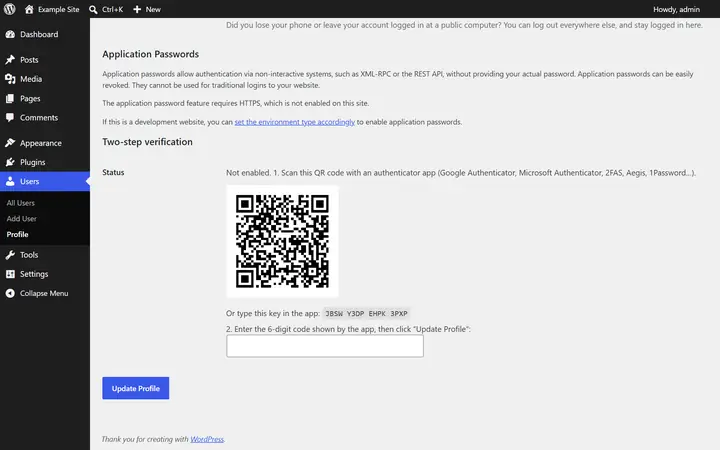
After the password, WordPress asks for a 6-digit code shown by an authenticator app on your phone: Google Authenticator, Microsoft Authenticator, 2FAS, Aegis, 1Password… The code changes every 30 seconds (TOTP standard).
New to the concept? Read our definition of two-factor authentication (2FA). To choose a method and roll it out without locking anyone out, follow our guide how to choose and roll out two-factor authentication on WordPress.
The setup QR code is generated on your own site: the secret is never sent to an external service. It is stored encrypted, and backup codes are kept only as hashes.
Why it matters
Passwords leak, get guessed or get reused from one site to the next. Two-factor authentication protects your accounts even then, and it is the single most effective defense against an administrator account takeover.
What’s included Pro feature
- Each user turns it on from their profile by scanning a QR code.
- Ten 10-digit backup codes, shown only once, each usable once. They can be regenerated.
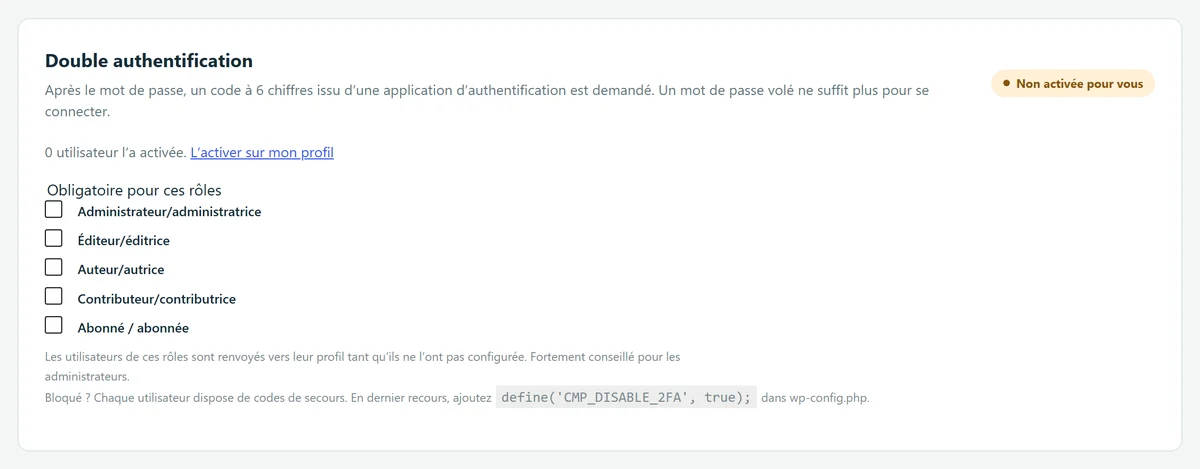
- Required by role: affected users are sent back to their profile until they’ve set it up. Strongly recommended for administrators.
- Brute-force protection: 5 wrong codes per login, then back to the password step; after 5 failures, an increasing wait (1, 2, 4… minutes, up to one hour).
- XML-RPC and REST API: a protected account only accepts application passwords there.
- Lasting protection: accounts already using two-factor authentication keep it even if the license expires or is revoked. Other Pro features, however, stop working.
How to turn it on
- For yourself: Profile → “Two-step verification” section. Scan the QR code, enter the code shown, then click “Update Profile”. Keep your backup codes somewhere safe.
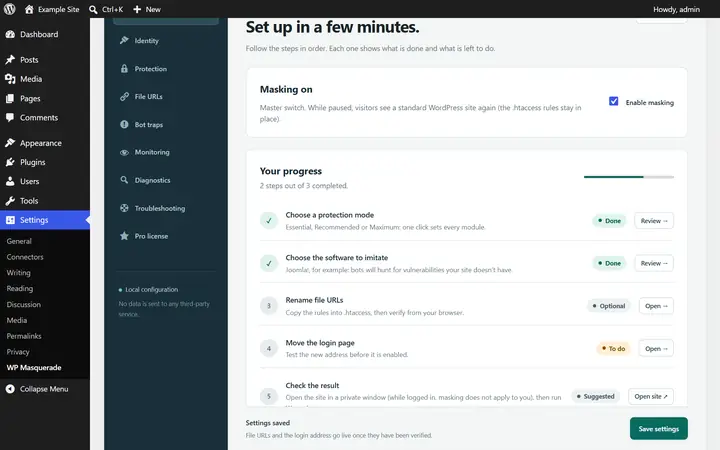
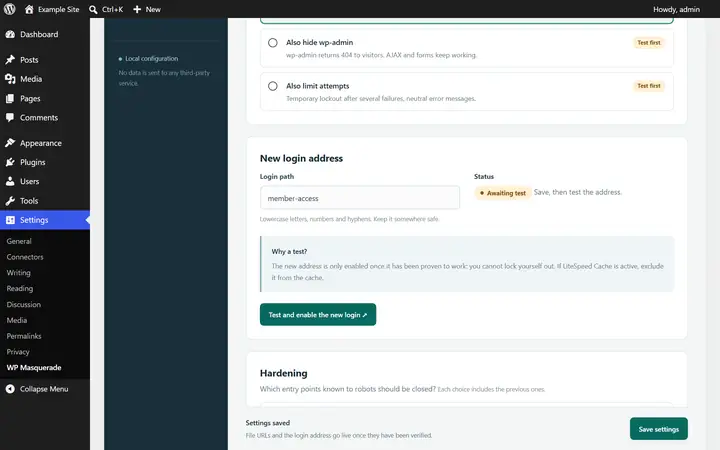
- For a team: WP Masquerade (the mask icon in the admin menu) → Protection → “Required for these roles”.
- Lost phone: log in with a backup code. An administrator can also turn off two-factor authentication from the user’s profile page.
Limits and precautions
- The code depends on your phone’s clock: if codes are rejected, make sure automatic time is turned on.
- If the security keys in wp-config.php change, the secret can no longer be read: log in with a backup code, then turn two-factor authentication off and on again.
- Last resort:
define('CMP_DISABLE_2FA', true);in wp-config.php suspends two-factor authentication for the whole site. Remove the line once the problem is fixed. - External login systems that bypass the standard WordPress login form may not be covered.
Start free, upgrade to Pro when you’re ready
The free version already hides WordPress, moves the login page, blocks XML-RPC and counts bots. Pro locks down logins, renames file URLs and monitors your sites for you: known vulnerabilities, core integrity, activity log, email alerts and the update status of all your sites in your member area. From €59 per year excl. tax, far less than the cleanup offers whose prices we checked. Compare the costs.