What the activity log does
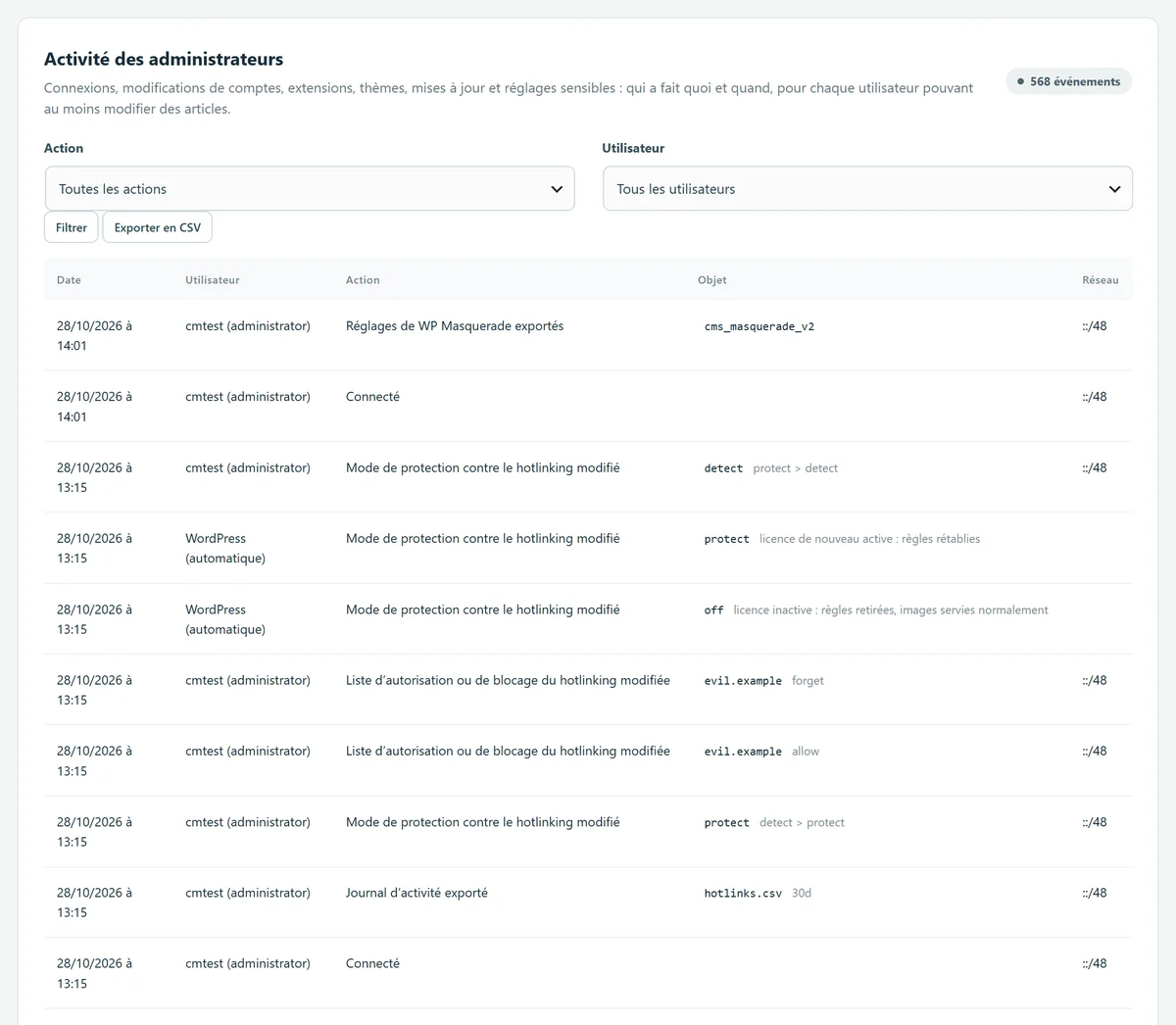
WP Masquerade Pro records the sensitive actions of every user who can at least edit posts (with the default roles: contributors, authors, editors and administrators), as well as changes made by WordPress itself, such as automatic updates. You’ll find the log in the Monitoring tab, “Administrator activity” card.
| Area | What is recorded |
|---|---|
| Logins | Login (including after the two-factor authentication code), failed login on an existing account, logout. |
| Accounts | Password reset or changed, account email changed, user created or deleted, role changed, two-factor authentication turned on or off. |
| Plugins and themes | A plugin installed, activated, deactivated, updated or deleted; a theme installed, switched, updated or deleted. |
| WordPress | Core update; a sensitive site setting changed (site address, WordPress address, administration email, registration, default role, search engine visibility); a file edited in the theme and plugin file editor. |
| WP Masquerade | Settings changed (setting names only), settings exported or imported, log exported. |
Each row shows the date, the user and their role, the action, the item concerned (for example the plugin name), a useful detail (installed version, old and new role, old and new value of a site setting) and the network, meaning the truncated IP address.
Why it matters
An administrator nobody created, a plugin installed in the middle of the night, an administration email address that changes: these are typical signs of a compromised account. Without a log, they go unnoticed. When several people work on a site (you, a client, an agency, a contractor), the log also tells you who changed what, and when, without having to dig.
What’s included Pro feature
- Filters by action and by user, 100 events per page.
- CSV export of the events shown by the filters, readable in a spreadsheet. Cells that start with =, +, - or @ are prefixed with an apostrophe, so that a spreadsheet doesn’t run them as formulas.
- Retention period of your choice: 30, 90 (default), 180 or 365 days. Older events are deleted automatically every day.
- Actions taken without a logged-in user, such as automatic updates, shown as “WordPress (automatic)”.
- Flood protection: at most 300 failed logins recorded per hour.
How to use it
- Go to WP Masquerade → Monitoring (the mask icon in the admin menu), “Administrator activity” card. Recording starts as soon as Pro is activated, with nothing to set up.
- To find an event, choose an action and/or a user, then click Filter.
- Click Export as CSV to archive the log or pass it on. The export itself is recorded in the log.
- If needed, change the period in “Keep events for”, then save.
What is never recorded
The log never contains a password, a key, a token, an application password or a two-factor authentication secret. For WP Masquerade settings, only the names of the changed settings are kept, not their values. On a failed login, the username entered is recorded, never the password.
IP addresses are truncated, as in the trap log: the last number of an IPv4 address is replaced with 0, and an IPv6 address is reduced to its /48 network. Events stay in your site’s database.
Limits and precautions
- The log starts when the feature is activated: nothing is available for the period before.
- Failed logins are only recorded for existing accounts that can edit posts. Random usernames tried by bots don’t appear: login attempt limiting and the traps take care of those.
- Content changes (posts, pages, comments) are not recorded.
- Anything that doesn’t go through WordPress, such as a file changed over FTP or a direct change to the database, doesn’t appear. For core files, the integrity check takes over.
- The log is stored in the site’s database: someone who already controls it can alter it. Export it regularly if you need a lasting record.
Start free, upgrade to Pro when you’re ready
The free version already hides WordPress, moves the login page, blocks XML-RPC and counts bots. Pro locks down logins, renames file URLs and monitors your sites for you: known vulnerabilities, core integrity, activity log, email alerts and the update status of all your sites in your member area. From €59 per year excl. tax, far less than the cleanup offers whose prices we checked. Compare the costs.