What the vulnerability alerts do
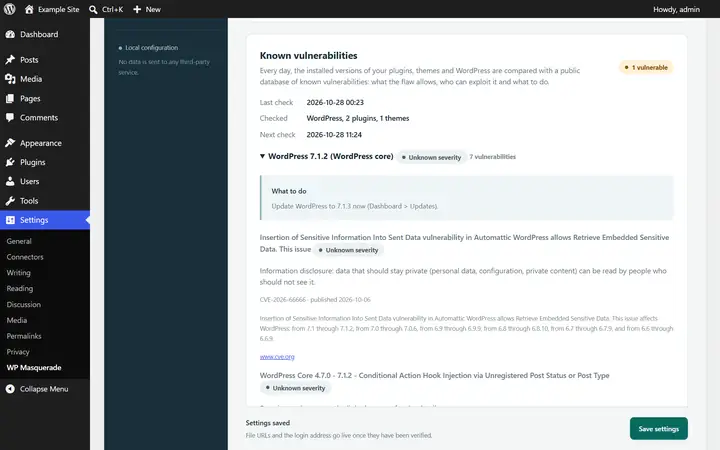
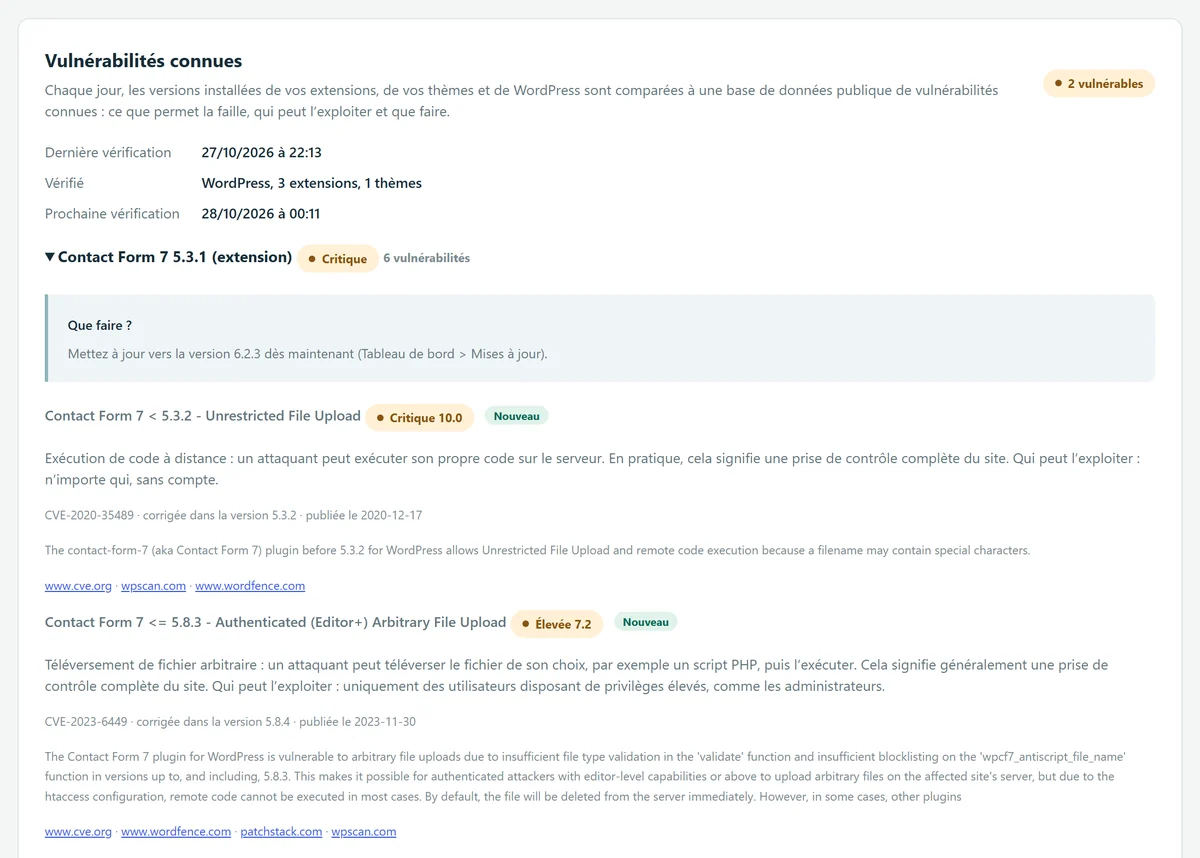
A plugin with no known issue when you installed it can, a few months later, be hit by a published vulnerability. Every day, WP Masquerade Pro compares the installed versions of your plugins, your themes and WordPress against the public database of known vulnerabilities at WPVulnerability.net. For each affected item, the “Known vulnerabilities” card in the Monitoring tab shows:
- the severity: Critical, High, Medium or Low, with the CVSS score when it is known;
- the type of vulnerability, explained in plain language: what an attacker can actually do;
- who can exploit it: anyone without an account, a registered user even with a low role, or only an administrator;
- the references: CVE identifiers, the version that fixes the vulnerability, the publication date and links to the sources;
- what to do: for example “Update to 6.2.3 now”, or, if no fix has been published, deactivate the plugin and replace it with a maintained alternative.
Why it matters
Most published WordPress vulnerabilities affect plugins and themes, not the core. Once a vulnerability is made public, bots can search for sites that run the affected version. Knowing that an installed plugin is affected, what the vulnerability allows and which version fixes it lets you update with full knowledge of the facts, starting with what is most serious.
Several sites to watch? The number of known vulnerabilities of each site is also sent every day to your member area, along with pending updates: an affected site shows as “Vulnerable”, at the top of the list. For an agency, that is the list of client sites to handle first, without signing in to each one. How monitoring works.
Deactivated plugins are checked too: as long as their files are on the server, they can be attacked directly. The card points this out and advises you to delete what you don’t use.
| Type of vulnerability | What it allows, as explained in the card |
|---|---|
| Remote code execution | An attacker can run their own code on the server: in practice, a full takeover of the site. |
| Arbitrary file upload | An attacker can upload a file of their choice, such as a PHP script, and then run it. |
| SQL injection | Commands slipped into database queries make it possible to read or change data (email addresses, password hashes). |
| Authentication bypass | An attacker can log in or act as another user without knowing their password. |
| Privilege escalation | A user with a low role (subscriber, contributor) can give themselves more rights, up to administrator. |
| Cross-site scripting (XSS) | An attacker’s script runs in the browser of visitors or administrators, with the rights of the person viewing the page. |
| Missing authorization | An action meant for administrators can be triggered by visitors or by users with a low role. |
What’s included Pro feature
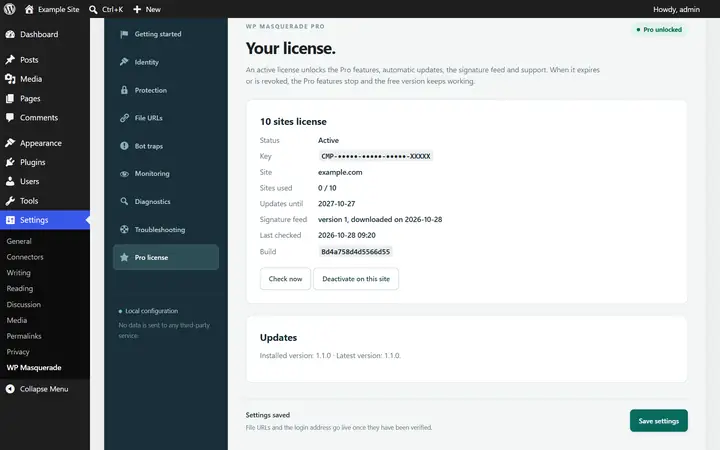
- Daily check via WP-Cron, plus a Check now button.
- Plugins, themes and WordPress, active or not; the installed version is compared on your site with the versions affected by each vulnerability.
- A recommendation for each item, which takes into account the update offered in Dashboard → Updates when it fixes the vulnerability.
- A “New” label for vulnerabilities that appeared since the previous check, and an email to the alert recipients when that happens (option on by default).
- A warning for plugins closed on WordPress.org, which no longer get updates there.
- A list of items with no known vulnerability in their installed version.
How to use it
- Go to WP Masquerade → Monitoring (the mask icon in the admin menu), “Known vulnerabilities” card. The first check runs about two hours after Pro is activated; click Check now to run it right away.
- Deal first with the items marked Critical or High: they are listed first.
- Follow the “What to do” section: usually, update from Dashboard → Updates. If no fix has been published, deactivate and then delete the plugin, and replace it with a maintained alternative.
- Delete the plugins and themes you don’t use, then click Check now again.
- Leave the email option checked so you hear about future vulnerabilities.
What is sent, and to whom
The data comes from WPVulnerability.net, a free, open database whose data is placed in the public domain. Each vulnerability links to its sources (cve.org, Wordfence, Patchstack, WPScan, depending on the case).
Only the names (slugs) and versions of your plugins and themes and your WordPress version leave your site, to our license server: it checks that the license is active for this site, queries WPVulnerability.net and returns the vulnerabilities that affect your versions. It keeps no list per site (only a shared cache per plugin, and the date of the last check). Your site’s content is never sent. Extensions not distributed on WordPress.org are not sent.
Limits and precautions
- Only known, published vulnerabilities can be reported. A vulnerability nobody knows about yet shows up nowhere: keep everything up to date, even without an alert.
- Plugins and themes not on WordPress.org are not checked.
- The data is provided as is by WPVulnerability.net, through our license server: an active Pro license is required. If the service doesn’t respond, the item’s last known result is kept and the lookup is made again an hour later.
- To spare the server, a check stops after 25 seconds and resumes automatically a few minutes later.
- Checks rely on WP-Cron: on a low-traffic site, they may run a little late.
- The alert informs you; it doesn’t block anything and doesn’t update anything for you.
Start free, upgrade to Pro when you’re ready
The free version already hides WordPress, moves the login page, blocks XML-RPC and counts bots. Pro locks down logins, renames file URLs and monitors your sites for you: known vulnerabilities, core integrity, activity log, email alerts and the update status of all your sites in your member area. From €59 per year excl. tax, far less than the cleanup offers whose prices we checked. Compare the costs.