
Installation
- Back up your files, database and server configuration.
- Install on a copy of the site first.
- Under Plugins → Add New → Upload Plugin, upload the ZIP file, then activate it. WP Masquerade Pro installs on its own; if the free version is already there, keep it or delete it, your settings are kept.
- Open WP Masquerade (the mask icon in the admin menu; "Masquerade Security" if you use the free version on its own) and read the diagnostics. No transformation is applied until you turn on the “Masking on” switch.
- Choose the profile and levels, save, then follow the validation steps for the login page and paths.
- Check your pages in a private browsing window and while logged in.
Don’t run WP Masquerade alongside WP Hide, WPS Hide Login or Hide My WP: two disguises will contradict each other. The diagnostics flag these plugins but won’t deactivate them for you.
Modes and levels
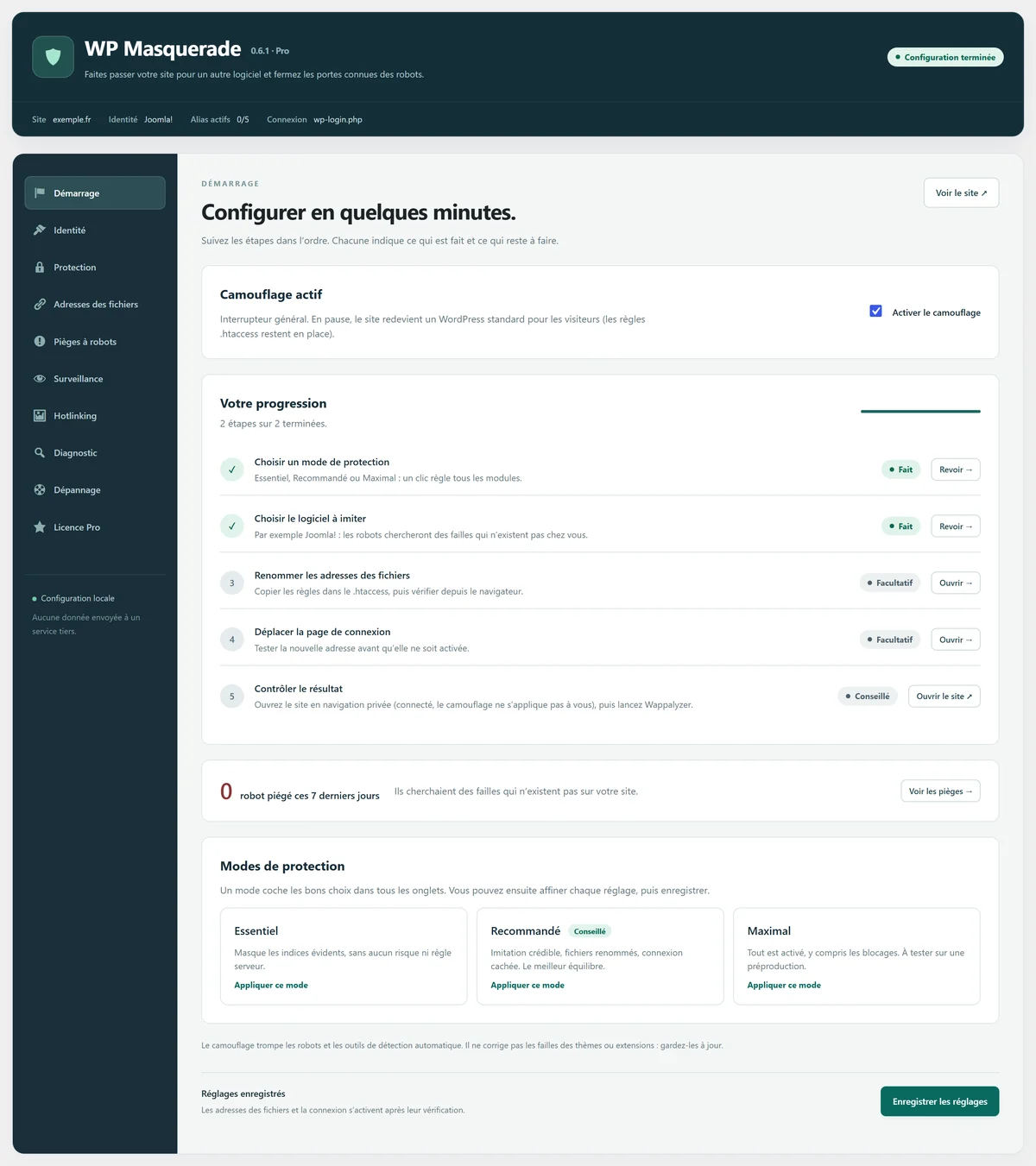
The Getting started tab offers three modes that configure every module in one click. You can then fine-tune each setting and save.
| Mode | Identity | Technical links | Hardening | File URLs | Login |
|---|---|---|---|---|---|
| Essential | 2 | 2 | 1 | Off | Off |
| Recommended | 3 | 3 | 3 | 3 | 2 |
| Maximum | 4 | 4 | 4 | 4 | 4 |
| Module | Free levels | Pro levels |
|---|---|---|
| Identity | 1 and 2 (5 profiles or a custom name) | 3 and 4 (41 profiles, Wappalyzer markers, cover comment) |
| Technical links | 1 and 2 (RSD, WLW, shortlinks) | 3 and 4 (REST and oEmbed discovery) |
| Hardening | 1 and 2 (pingbacks, XML-RPC) | 3 and 4 (author list, login attempt limiting) |
| File URLs | Off | 1 to 4 (all aliases, blocking of old URLs) |
| Login | 1 and 2 (custom URL, hidden wp-login.php and wp-admin) | 3 and 4 (unknown AJAX requests answered with 404, login attempt limiting) |
Each level is explained in detail on the page for its feature: identity, technical links, file URLs, login, hardening.
From level 1 of the Identity module, generator tags and HTML comments signed by well-known plugins (Yoast SEO, Rank Math, Site Kit, Elementor, cache plugins...) are removed from public pages. The Identity tab also offers the “Remove all HTML comments from public pages” option, off by default, which also removes neutral comments; conditional comments and cache markers are always kept. Purge the caches after activation. List of plugins.
Recommended setup path
For a simple content site, move forward in small steps and check the site after each one:
- Identity 2 and Technical links 1; all other modules off.
- Check the display, feeds and integrations.
- Set up Login 1, exclude its new URL from the cache, then use “Test and enable the new login”. Try the forms from a private window.
- Raise Login to 2 (or 3 with Pro) and test again.
- With Pro: set up File URLs 1, install the server rules, verify and activate, then move to levels 2 and 3 after checking each group of assets.
- Turn on Hardening 1; go up to 2 (or 3 with Pro) only if you don’t use the features it blocks. With Pro, tune login attempt limiting to fit your users.
- With Pro: check the security headers, run a first integrity scan and send yourself the test alert report.
- Keep blocking of old URLs (level 4) for sites whose hard-coded URLs and cache optimizations have been audited.
Server rules and verification (Pro)
The file aliases in WP Masquerade Pro require rewrite rules; the free version doesn’t need any. The plugin displays the block that matches your saved settings, and it must be installed before verification. On Apache, LiteSpeed and o2switch, paste it at the very top of the .htaccess file at the domain root, before “# BEGIN LSCACHE” and “# BEGIN WordPress”. If a WP Masquerade block already exists, replace that block, not the whole file.
The Verify and activate button has your browser download one test file per alias and compares its SHA-256 hash with the original. A redirect or a substitute HTML page is rejected. If verification fails, the previous plan stays in place and the reason is displayed. Other servers are covered on the compatibility page.
Caches
- Use a single main page cache.
- Exclude the new login URL from the cache before testing it.
- After each change, use Purge caches (Diagnostics tab), then purge your host’s cache and CDN if needed.
- Test with CSS/JS optimizations turned off first, then turn them back on one at a time.
Monitoring and headers (Pro)
- Security headers (Protection tab): X-Frame-Options, Referrer-Policy and Permissions-Policy are on by default. After each change, purge the cache, then click “Check the home page”. Only turn on HSTS if the whole site runs reliably over HTTPS for the long term. Details.
- Core integrity (Monitoring tab): daily scan, or “Scan now”. If anything differs, reinstall your version from Dashboard → Updates and deal with any unknown PHP files. Details.
- Email alerts (Monitoring tab): enter up to 5 recipients, then use “Send the report now” to test delivery. Details.
- Known vulnerabilities (Monitoring tab): daily check of plugins, themes and WordPress, or “Check now”. Deal with Critical and High items first. Details.
- Administrator activity (Monitoring tab): who did what, and when, with filters, CSV export and a retention period of 30 to 365 days. Details.
- Hotlinks (Hotlinks tab): start with Detect mode, then read the report and allow legitimate sites before switching to Protect mode. On Apache and LiteSpeed, then click “Test the rules”; on Nginx, first copy the suggested block into the server configuration. Details.
- Cloudflare (Protection tab): keep the Automatic mode; behind Cloudflare, check that “Your address as seen by the site” really is yours. Details.
- Export or import the settings (Troubleshooting tab): download your settings before a big change; an import shows a preview per section, and you choose which sections to import. Settings profiles leave out values specific to the site. Details.
- AI crawlers (AI crawlers tab): start from one of the Quick choices, turn on adding the rules to robots.txt and, only if needed, strict blocking; then click “Open robots.txt” to check. Details.
- Agency management (Pro License tab): everything is off by default. If an agency manages your site, tick only what you agree to (security overview, settings profiles, white-label). Details.
Pre-launch checks
- Home page, a post, search, the 404 page, RSS feed, sitemap and mobile display.
- Images, fonts, CSS/JS files, PDFs and media.
- Comments, forms and any integrations you use.
- Login, logout, registration, lost password and password reset.
- Admin area, editor, AJAX, REST API and expired sessions.
- No new 404s, no 500 errors and no JavaScript errors in the browser.
- A recovery access path available outside WordPress (FTP or file manager).
Recovery if something goes wrong
I can’t log in anymore
Add this line to wp-config.php (via FTP or your host’s file manager), above the line “That’s all, stop editing!”:
define('CMS_MASQUERADE_DISABLE', true);All PHP transformations stop and wp-login.php works again. Remove the line once the problem is solved. Server rules and already cached pages stay active: restore or purge them separately.
Two-factor authentication is locking me out (Pro)
Log in with one of your backup codes. Another administrator can also turn off two-factor authentication from your user profile. As a last resort:
define('CMP_DISABLE_2FA', true);This line suspends two-factor authentication for the whole site. Remove it as soon as possible.
A security header interferes with a feature (Pro)
Uncheck the header in question in the Protection tab or, if you can’t reach the admin area:
define('CMP_DISABLE_HEADERS', true);This line stops the plugin from sending security headers. Browsers that already received HSTS keep it in memory until it expires.
My IP address is blocked (Pro)
In the Troubleshooting tab, the “Unblock me” button releases your current IP address, both from login limiting and from the traps. If you can no longer reach the admin area, use CMS_MASQUERADE_DISABLE.
Images or styles no longer load
Put back the previous server rules (the Troubleshooting tab shows them), then click Verify and restore the previous plan. Next, purge the caches and check in a private browsing window.
Rollback and uninstall
- To remove all aliases: choose “No aliases”, save, restore the original access on the server, then verify and apply the empty plan. The plugin refuses to remove them if the test files don’t respond at their original URLs.
- Deactivation: your preferences are kept and a purge is requested from recognized caches.
- Before deactivating WP Masquerade Pro, remove the alias server rules: URL rewriting lives in Pro, and without it pages go back to /wp-content/. If blocking of old URLs is on, the Plugins page asks for confirmation.
- Uninstall: the plugin’s options and its rate-limiting table are deleted. Restore the server rules first: deactivating the plugin does not remove rules you added by hand.
The full documentation (GUIDE.md) ships with the plugin, along with a guide specific to o2switch (O2SWITCH.md). Have a question? Check the FAQ or email us.
Before a big change, export your settings (Troubleshooting tab, Pro): a .json file you can import again if something goes wrong, or reuse on another site. See settings import and export.