Sucuri is known for two very different things: a free monitoring plugin, installed on more than 600,000 sites, and a paid firewall that filters traffic in the cloud, before your server. WP Masquerade works inside WordPress: it hides the CMS, moves the login and spots bots. Here is what each Sucuri product really does, what the pair brings and how to avoid the two pitfalls of this combination: overlapping features and the IP address of visitors behind the firewall.
Disclosure: this article is published by the WP Masquerade team. Sucuri does not pay us and we use no affiliate links. The information about Sucuri comes from its wordpress.org page, its website, its documentation and the code of plugin version 2.8.1.
The Sucuri Security plugin: monitoring and hardening
The free plugin (version 2.8.1 of October 14, 2026) contains no firewall. It is a monitoring and hardening tool, usable without an account or API key; according to its FAQ, Sucuri then collects no information.
- Audit log: logins, changes to content, plugins and settings, with search, filters and CSV export since version 2.8.
- File integrity: the plugin compares the state of the files with a baseline and reports additions, deletions and changes.
- Remote scanning by SiteCheck, Sucuri’s free scanner: it visits the site like a visitor and looks for malware, errors and outdated software visible from the outside.
- Blocklist monitoring (Google Safe Browsing, Sucuri Labs and others).
- One-click hardening: removal of the WordPress version, blocking of PHP files in
uploads,wp-contentandwp-includes, disabling of the file editor, automatic renewal of the secret keys, and since version 2.7.4 a “Disable XML-RPC” option. - Post-hack actions: change the secret keys, reset passwords, reinstall plugins.
- Two-factor authentication with an app, with ten backup codes since version 2.8, and management of a few headers (Cache-Control, CORS and CSP in report mode).
The Sucuri firewall: filtering before the server
The firewall is set up by changing the domain’s DNS records: traffic then goes through Sucuri’s network, which inspects it before passing it on to your hosting. According to the product page, it provides virtual patches for software that is not yet up to date, brute force protection, mitigation of denial-of-service attacks (layers 3, 4 and 7), a CDN, and “protected pages” behind a password, CAPTCHA, two-factor authentication or a list of allowed IP addresses. The plugin is not required to use it, but it lets you manage it from WordPress with an API key.
| Plan | Listed price | Main content |
|---|---|---|
| Sucuri Security plugin | Free | Audit, integrity, SiteCheck, blocklists, hardening, two-factor authentication |
| Basic Firewall | $9.99 per month, 1 site | Cloud firewall, DDoS mitigation, CDN |
| Pro Firewall | $19.98 per month, 1 site | Same, higher tier |
| Basic Platform | $229 per year, 1 site | Firewall and unlimited manual malware cleanup (handled within 30 hours) |
| Pro and Business Platform | $339 and $549 per year | Shorter cleanup times (12 hours, 6 hours) and more frequent scans |
The firewall’s strength is its position: blocked requests never reach your server, which takes the load off it during a wave of attacks. Its limitation is the same as that of any upstream firewall: if the server’s real IP address is known, an attacker can target it directly. Our comparison of firewalls for WordPress explains these differences in position.
What the pair brings
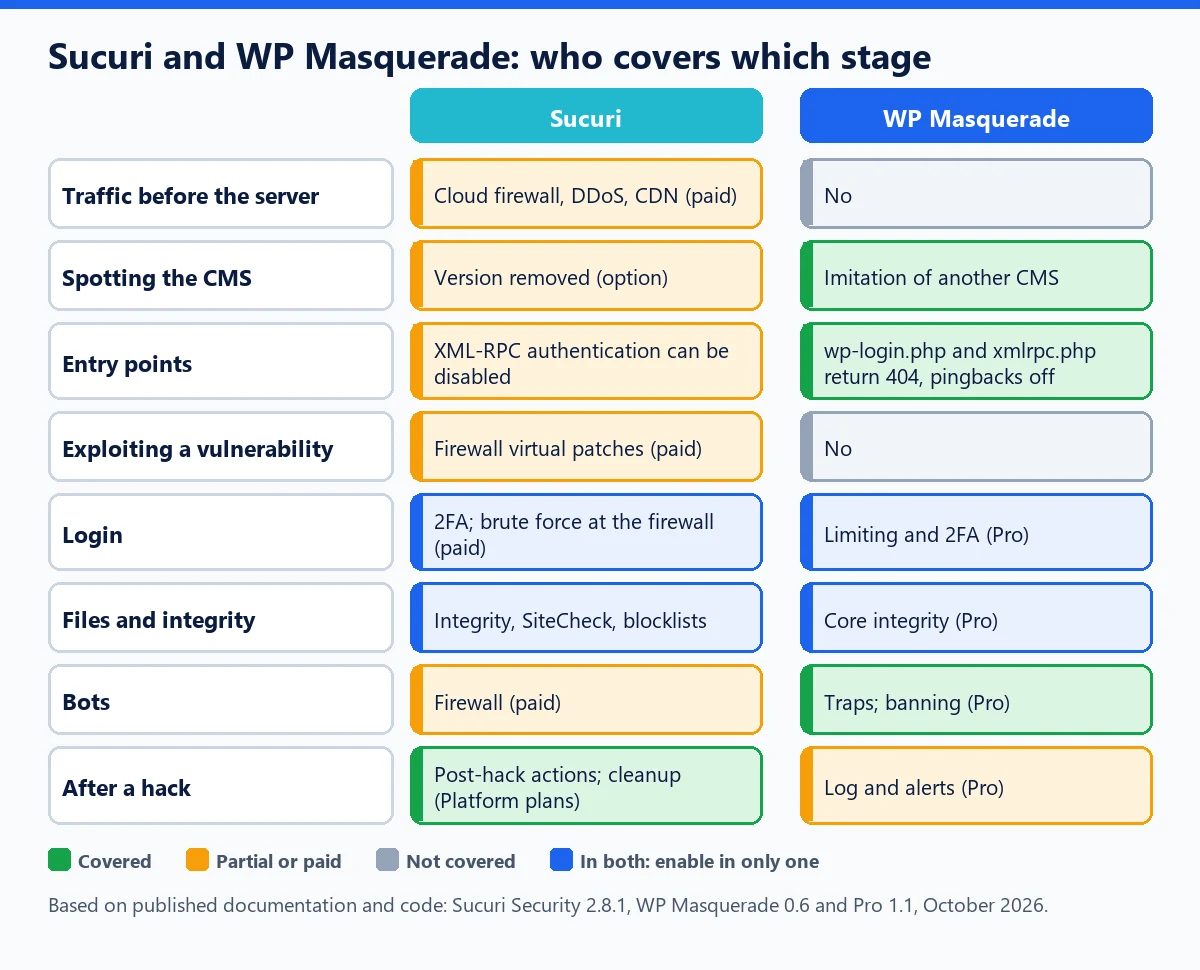
Sucuri and WP Masquerade act in different places, with little overlap:
- The Sucuri firewall stops known attacks and traffic surges before the server; WP Masquerade removes the clues that mark your site as WordPress and closes addresses that the firewall lets through because they are legitimate (
wp-login.php,xmlrpc.php, author archives). - The Sucuri plugin monitors the state of the site (integrity, blocklists, audit); WP Masquerade adds what it lacks: a custom login address, other CMS imitation, bot traps and, with Pro, login attempt limiting inside WordPress, X-Frame-Options, Referrer-Policy and Permissions-Policy headers, file URL aliases and detailed vulnerability alerts.
- XML-RPC: the Sucuri option uses the WordPress
xmlrpc_enabledfilter, which disables the methods that require authentication;xmlrpc.phpkeeps responding and pingbacks are not affected. The free version of WP Masquerade makesxmlrpc.phpreturn 404 and turns off pingbacks.
Visitors’ IP address behind the firewall
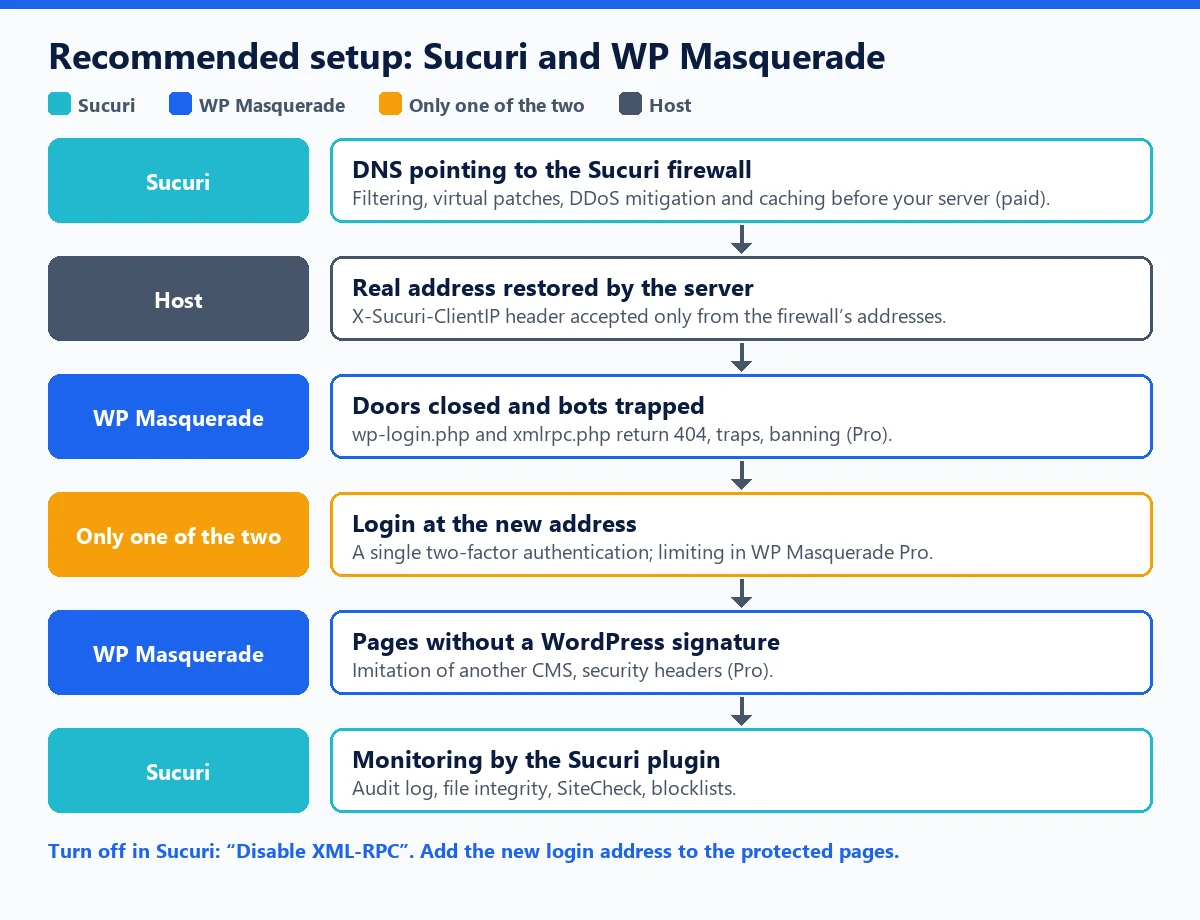
Behind a cloud firewall, your server sees Sucuri’s addresses, not those of visitors. Sucuri’s documentation confirms this (“Same IP for All Users”): the real address is passed in a header, and for WordPress it recommends the official plugin, which restores it. According to the code of version 2.8.1, this restoration is turned on automatically when you save the firewall API key, and it happens early in the WordPress load (init action, priority 1).
WP Masquerade Pro restores the real address itself from the X-Sucuri-ClientIP header, as soon as plugins load, so before the Sucuri plugin: the ban check for trapped bots, login limiting and the activity log see the real visitor, with or without the plugin. The header is only accepted when the connection comes from the Sucuri firewall’s official address ranges; otherwise it is ignored, so it cannot be used to fake an address.
The setting is in the “Proxy / CDN” card of the Protection tab, in Automatic mode by default (see Cloudflare, Sucuri and real visitor IPs). Restoring the address at the server level remains good practice (Apache’s remoteip module, Nginx’s real_ip or your host’s equivalent setting, trusting the header only for the firewall’s addresses): server logs benefit too; then choose the Off mode in WP Masquerade. As Sucuri recommends, also block direct access to the origin server by only allowing the firewall’s addresses, so that nobody can bypass it.
Who does what: the recommended setup
| Feature | Enable in Sucuri | Enable in WP Masquerade | Turn off |
|---|---|---|---|
| Firewall, DDoS, virtual patches | Yes (paid firewall) | Not applicable | Nothing |
| File integrity | Yes (core, plugins, themes) | Core integrity check Pro, optional | A single alert recipient to avoid duplicates |
| External scanning and blocklists | Yes (SiteCheck) | Not applicable | Nothing |
| Custom login address | Not applicable in the plugin | Yes free | If you use the firewall’s protected pages, add the new address to them |
| Login attempt limiting | Firewall brute force protection | Yes Pro: the real IP is restored by Pro or by the server | Nothing |
| Two-factor authentication | Yes if you use the free version of WP Masquerade | Yes if you have Pro (per-role requirement) | The one you do not use |
| XML-RPC and pingbacks | No | Yes: “Block XML-RPC” free | Sucuri’s “Disable XML-RPC”, now unnecessary |
| WordPress version | Optional | Yes: other CMS imitation | Nothing: the imitated tag stays displayed |
| Security headers | Cache-Control (for the firewall cache) | Yes: X-Frame-Options, Referrer-Policy, Permissions-Policy, CSP Pro | Sucuri’s report-mode CSP if you enable WP Masquerade’s CSP |
| Activity log | Audit log free | Activity log Pro, optional | Nothing: both can coexist |
| Bot banning | Firewall | Traps free; banning Pro, with the real IP restored by Pro or by the server | Nothing |
A detail about the version tag: Sucuri’s “Remove WordPress Version” option removes the WordPress generator tag, whereas WP Masquerade prints the tag of the imitated software itself. Both can therefore stay on without the imitation disappearing. For XML-RPC, the Sucuri plugin warns that a plugin such as Jetpack depends on it: this is also true for WP Masquerade’s blocking.
Step-by-step setup
- Back up the site and the
.htaccessfile: the Sucuri plugin and WP Masquerade each write their own rules to it on Apache and LiteSpeed. - Install the Sucuri plugin, apply the hardening you want (without “Disable XML-RPC”), and let it create its integrity baseline.
- If you take the firewall: change the DNS as instructed by Sucuri, save the API key in the plugin, then, if possible, ask your host to restore the real address at the server level and to only let the firewall’s addresses reach the origin server (WP Masquerade Pro restores it in WordPress anyway).
- Install WP Masquerade and follow the Getting started tab. Choose the login address, exclude it from the firewall cache and from your caching plugin, then test it with “Test and enable the new login”.
- If you use the firewall’s protected pages or its IP restriction for the admin area, check that they cover the new login address, and not only
wp-login.php. - Choose a single two-factor authentication, then test login, lost password and logout in a private window.
A note on SiteCheck: it scans the site like a visitor. With other CMS imitation, what it infers from the public page about the software in use and its version no longer reflects your WordPress; rely on the plugin itself and on updates for that aspect.
What the pair does not cover
- Without a firewall subscription, neither plugin filters SQL injection or XSS: the free pair monitors and reduces the attack surface, it does not block exploitation of a vulnerability. In that case, add a web application firewall or virtual patches.
- Updates remain the only fix for a vulnerability; WP Masquerade Pro’s vulnerability alerts tell you what to update first.
- Comment spam is a job for an anti-spam plugin: see what WP Masquerade blocks and what it leaves to an anti-spam plugin.
- An already hacked site: Sucuri’s Platform plans include cleanup; otherwise, follow our guide to cleaning up a hacked WordPress site.
To see where Sucuri stands among the other plugins, see our comparison of the best WordPress security plugins. On the WP Masquerade side: login page, hardening, bot traps and host and cache compatibility.
Key takeaways
- The free Sucuri plugin monitors and hardens; attack filtering is in the paid firewall, enabled through DNS.
- WP Masquerade adds what Sucuri does not do inside WordPress: hiding, login address, complete XML-RPC blocking, traps, headers.
- Behind the firewall, WP Masquerade Pro restores the real IP from the X-Sucuri-ClientIP header, for Sucuri’s official ranges only; server-level restoration and blocking direct access to the origin server are still recommended.
- A single two-factor authentication, and the new login address in the firewall’s protected pages.
Sources
- WordPress.org: Sucuri Security, changelog (2.7.4 to 2.8.1) (external link, opens in a new tab)
- Sucuri: Website Firewall (external link, opens in a new tab)
- Sucuri Docs: Same IP for All Users (external link, opens in a new tab)
- WordPress Developer Resources: xmlrpc_enabled filter (external link, opens in a new tab)
Other sources consulted: official vendor pages.